01 / Outside your door
A feel for your day.
Check current weather and hourly or daily forecasts. Search for your city, or use your location once and confirm before saving.
 Life Abroad
An iPhone app for life abroad
The weather outside. A price in a familiar currency. The right time to call someone far away.
Keep the little things that connect your worlds together in one calm, illustrated pocket atlas.
Find help & supportWeather, money & world clocks. Made for iPhone.
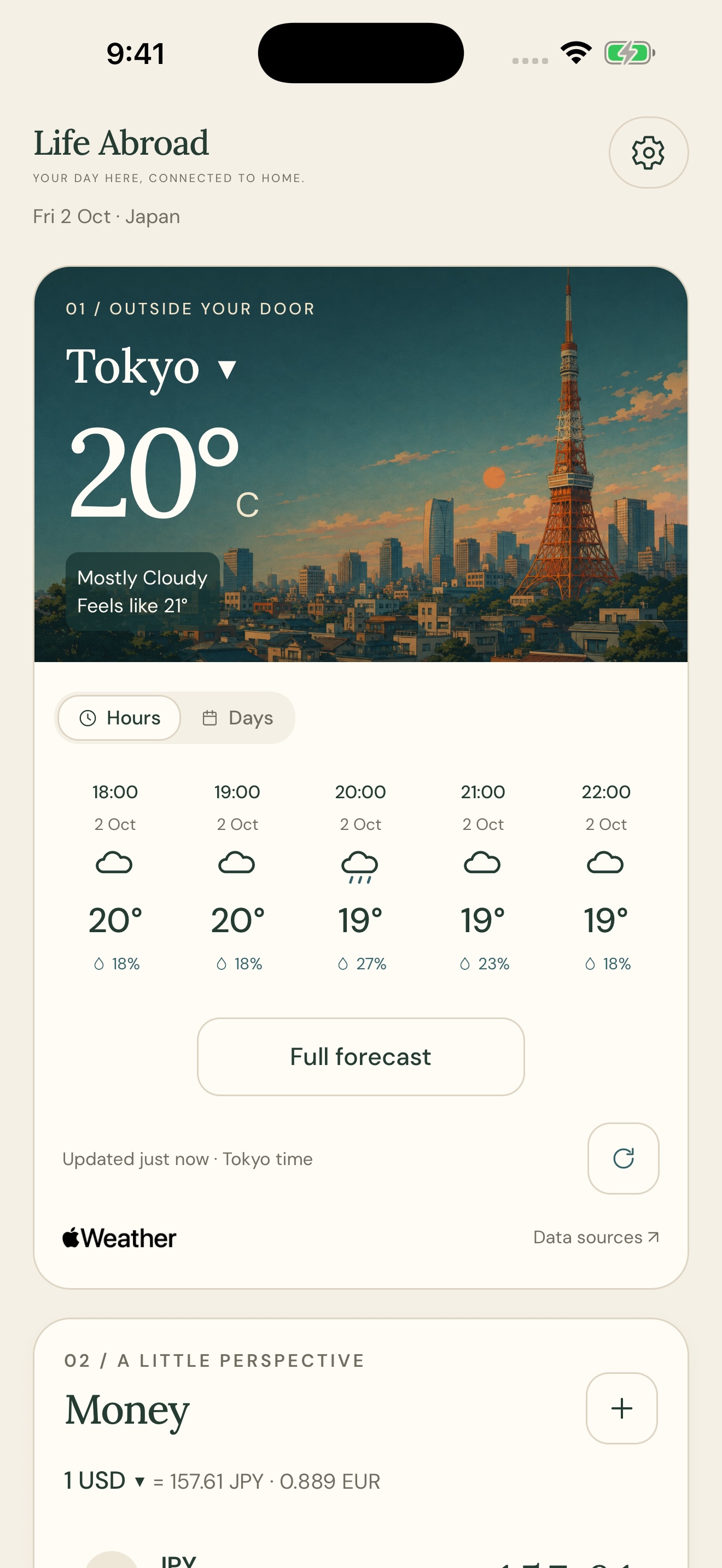
01 / Outside your door
Check current weather and hourly or daily forecasts. Search for your city, or use your location once and confirm before saving.
02 / A little perspective
Enter an amount in any saved currency and see the others update together. Keep your everyday currencies close, wherever you shop.
03 / People, places, time
Save the cities that matter, give them personal labels, and move their clocks together to find a good moment to connect.
A helping hand
A few answers to help you find your way around Life Abroad.
Still need help?Tap the city name on the Weather card, or open Settings → Current city → Change current city. Search, choose a result, then tap Use [city]. Closing the picker before confirming keeps your previous city.
Use my location is optional. It asks for your location once to suggest a city, and approximate location is supported. You still confirm before saving. The app does not track your location in the background or automatically follow your travels.
If permission is denied, search manually or change Life Abroad’s location permission in your iPhone settings. Search and location lookup need an internet connection; your saved city and the bundled city suggestions remain selectable offline.
Connect to the internet and tap the refresh arrow beside the weather status. Check your city and the Updated time. Switch Hours / Days for the preview, or open Full forecast. Temperature units are in Settings.
After a successful update, saved weather is available offline. A failed refresh keeps the saved forecast and shows an error. Older forecast entries expire, so there may be fewer entries. If no weather has been saved for that location, values appear as —.
Weather is supplied by Apple Weather. The Data sources link beneath a loaded forecast opens its source information. City illustrations are decorative and do not show current conditions.
Tap a Money row and enter an amount. All your other saved currencies update together. Tapping another row changes the input currency, without changing your saved rate base. The rate line beneath the heading or the + picker lets you change the base.
Reset amounts returns to the normal rate display. Use Done above the number pad to hide the keyboard. Amounts are temporary and are not saved across an app restart.
Tap + to add, reorder or remove currencies, keeping at least two. The refresh arrow updates the rate table. After one successful update, conversion works offline with saved rates; check their update time and any reference dates. Unavailable conversions show —.
Rates come from Coinbase, with Frankfurter providing additional currencies and a fallback. Bank, card and exchange-service fees are excluded, so the amount a provider charges may differ.
Tap + on Timezones to add cities or timezones, organize their order and add labels. City search needs a connection; the built-in timezone list works offline.
Compare times moves all clocks together. Use the slider or the −1h / −15m / +15m / +1h buttons. Now returns to the current time, and Done restores live clocks.
If live clocks look wrong, check your iPhone’s date and time settings. Your saved timezones are separate from your weather city.
Choose Light, Dark or System in Settings. System follows your iPhone’s appearance.
Your chosen city, currencies, rate base, timezone labels and order, temperature units and appearance are saved on this device. No app account is required. If the app says that settings or data could not be saved, keep a note of your selections and contact support if it continues.
The privacy policy explains local settings, optional location access, weather and rate requests, and your choices.
Read the privacy policyLet’s sort it out
Questions, feedback, or something not working as expected? Email Life Abroad support.
hello@alchemy-intel.comInclude your iPhone model, iOS version, the app version at the bottom of Settings, and what happened. If you use TestFlight, include the build number.
Steps to reproduce the issue and a screenshot are helpful. Remove any personal details you do not want to share.